
 |
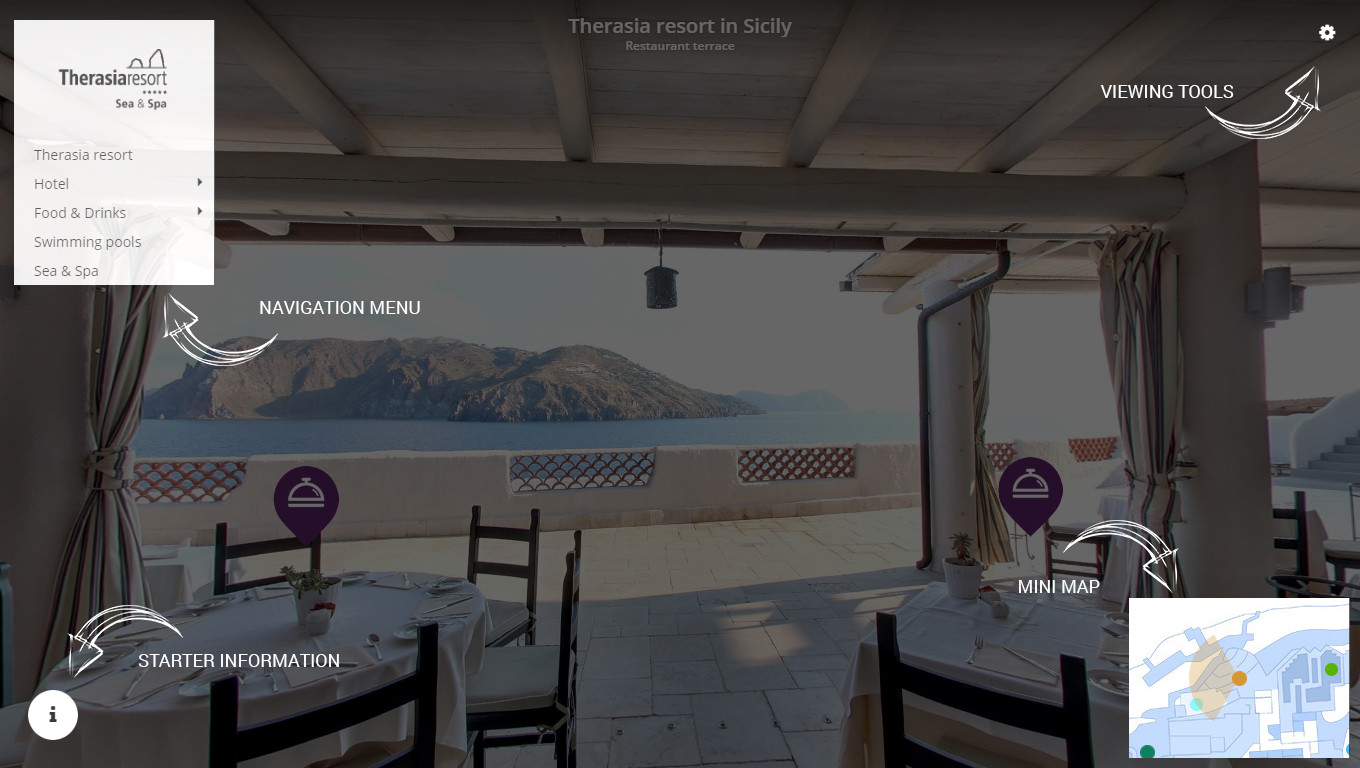
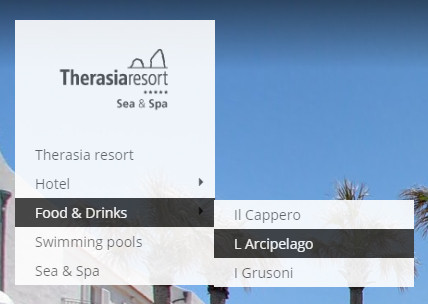
Navigation Menu Enable Navigation Menu to display the best locations in your virtual tour through a single click. Especially the larger tours often have most of the panoramas undiscovered. Navigation Menu aims to resolve this. |
 |
Mini Map The mini-map provides spots where users can easily see where they are in the property. Clicking these spots opens the corresponding virtual tour. Mini-maps can also be minimized to free up valuable viewing space on smaller computers screens. |
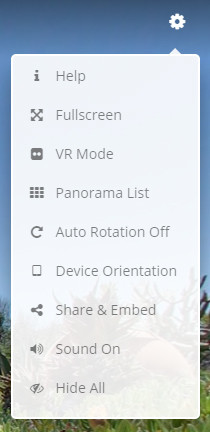 |
Ocurus tools In this section, you can learn about the tools that help your virtual tour. Help - This menu shows a "Help" screen about how to control virtual tours built in Ocurus. Fullscreen - This menu makes your browser into a fullscreen. VR Mode - If you want to see your virtual tour using VR devices and Cardboard, you should click to enable. Panorama list - This menu shows you the list of all the panoramas in a current virtual tour. Auto Rotation Off - This menu will enable or disable auto rotation of your panoramic view. Device Orientation - If you want to view your virtual tour using device orientation device like smartphone or tablet, click to enable device orientation. Share & Embed - If you want to share or embed current virtual tour on your website or social networks, you can use this option. Sound On - This menu will enable or disable the sound on the virtual tour. Hide All - This menu will help you to view your virtual tour without menu, map, markers and everything built with Ocurus. |
|
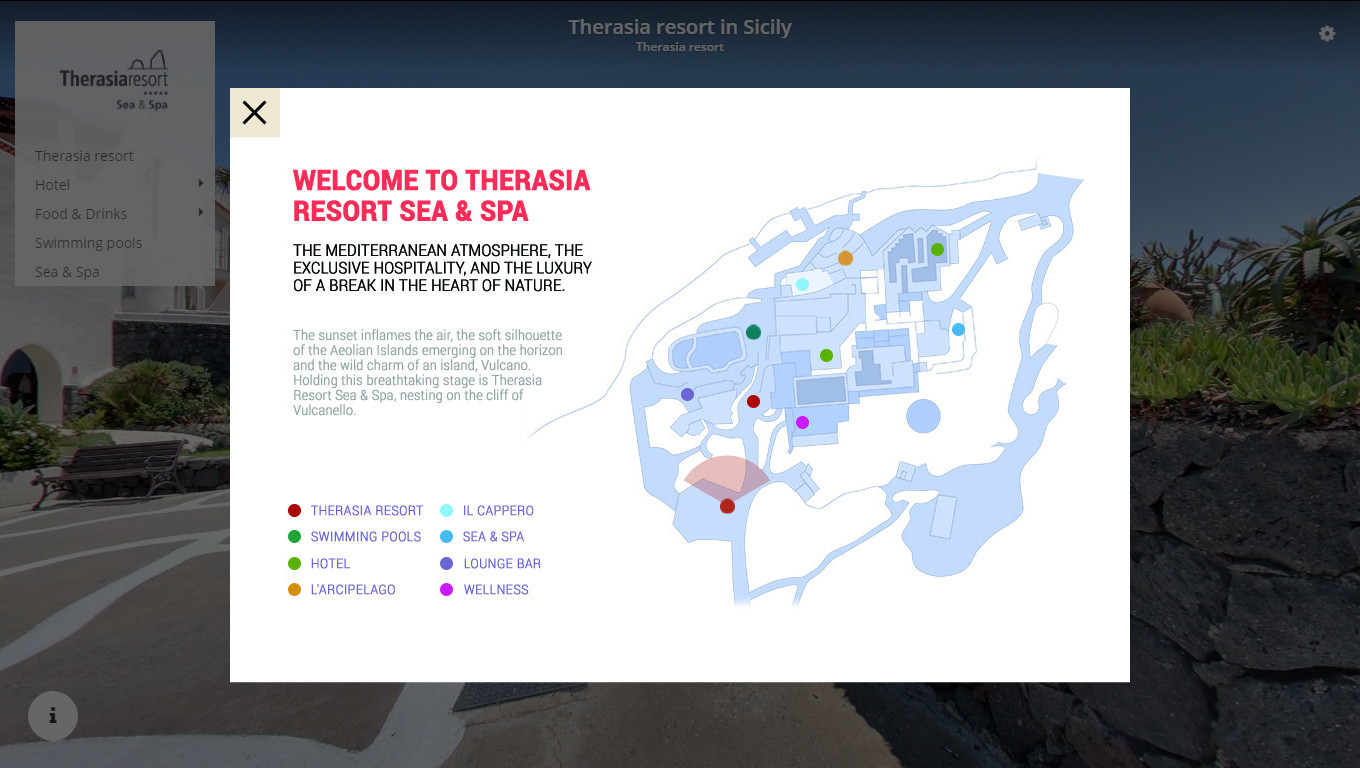
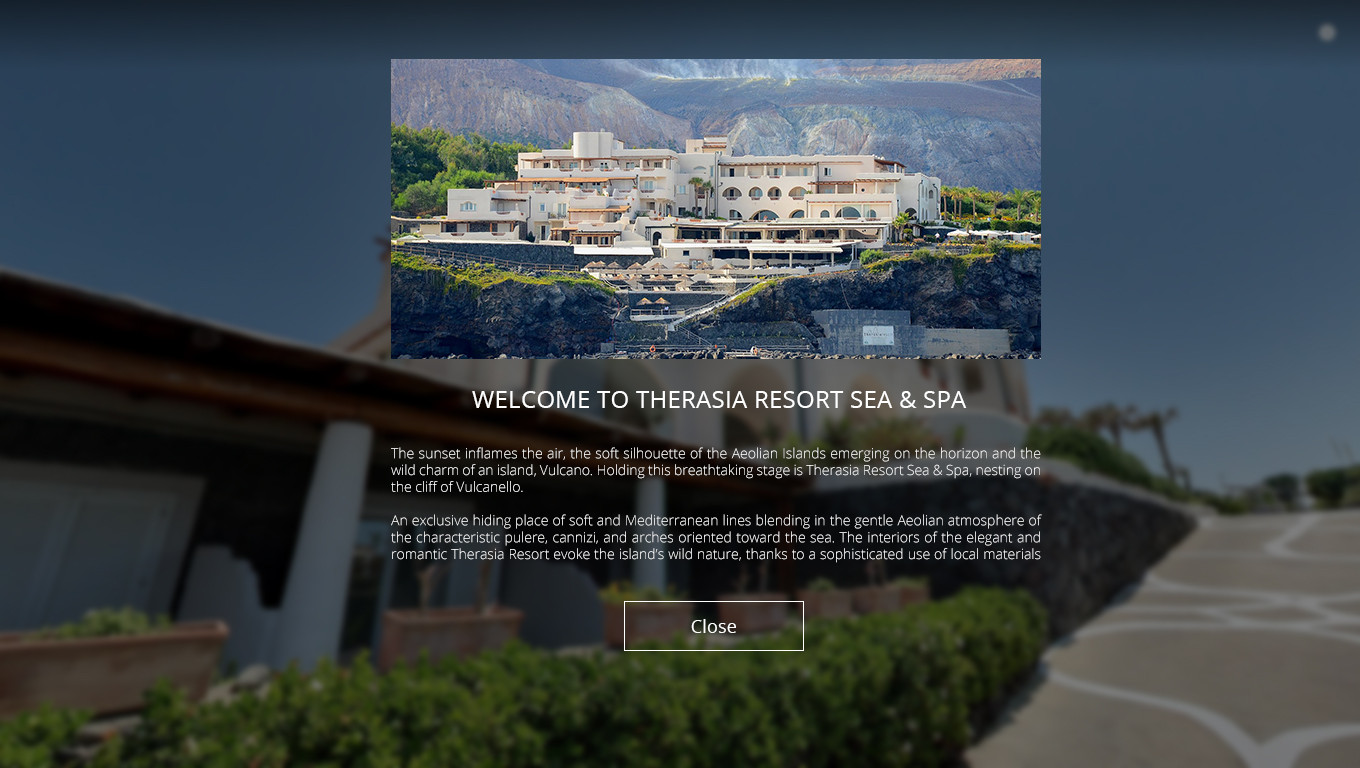
Beginning Modal The "Beginning Modal" gives you to enrich every panoramic view of your virtual tour project with information. As you seen from the image on the right side, you can build your desired content with tinyMCE editor on the beginning modal. |
 |