
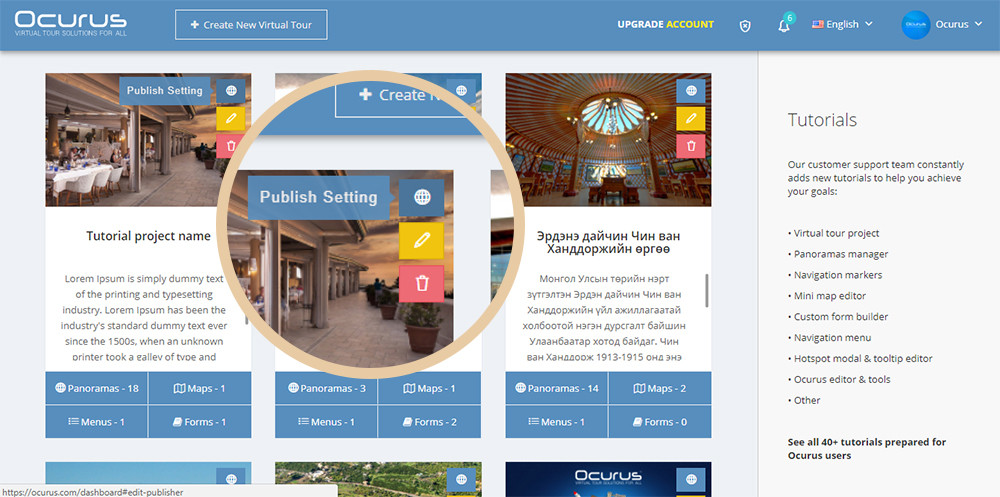
Hello, In this tutorial, we will show you how to use Publish Settings properly. You can find Publish Settings from your virtual tour lists on dashboard section.
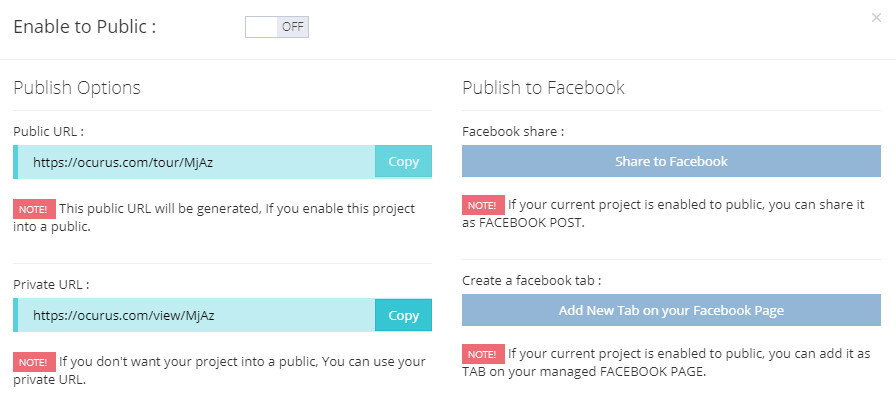

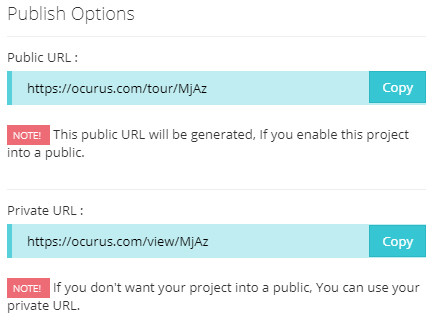
As you seen from the previous image, there is Enable to Public option. If it being OFF, your virtual tour will be hidden and only you and your clients who have private URL person can access it.
 |
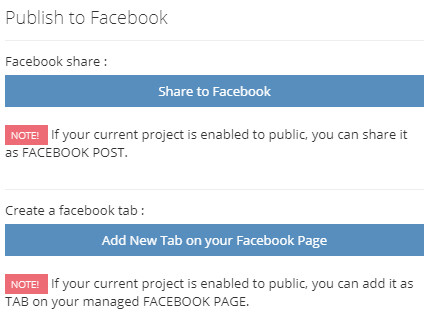
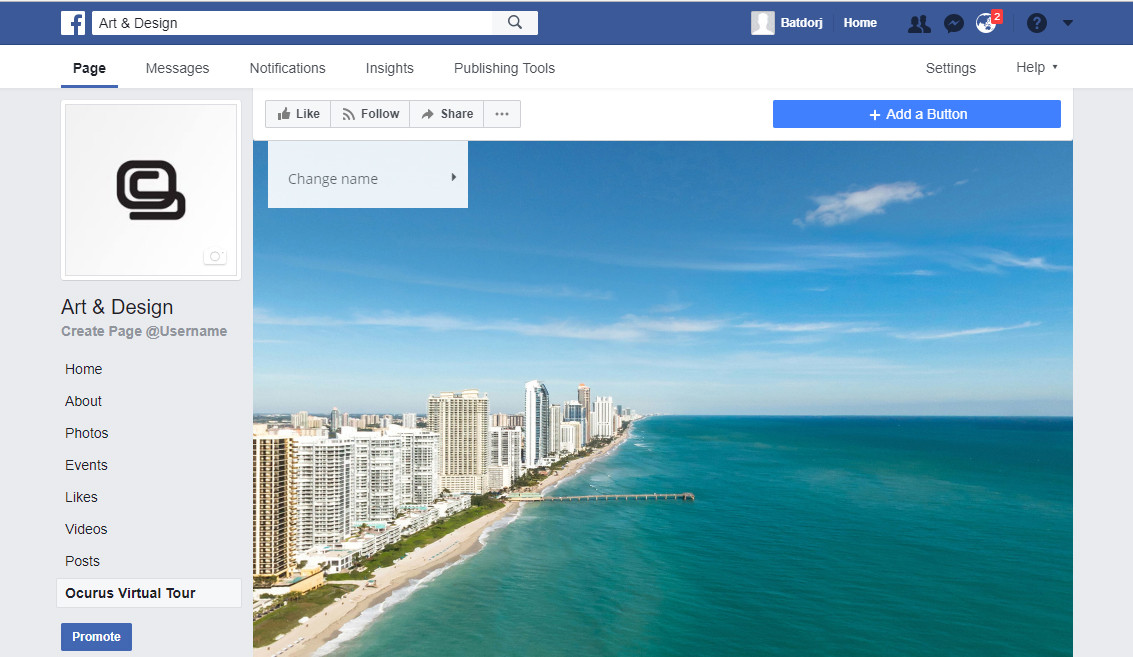
If you change Enable to Public option to ON it will be showed in Discovery page of Ocurus. Also if it's ON you can share it as your facebook page admin and also add your virtual tour as a NEW TAB on your facebook page. |

|
With this Share to Facebook button, you can share your virtual tour as your controlled account. With this Add New Tab on your Facebook Page button you can create NEW TAB with your virtual tour on your managed facebook page. |
 |
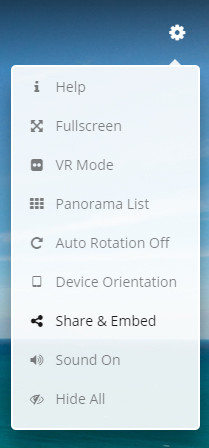 |
Notice: Don't forget to change your publish settings option ON to enable your Share & Embed possibility on your virtual tour tools. |
|
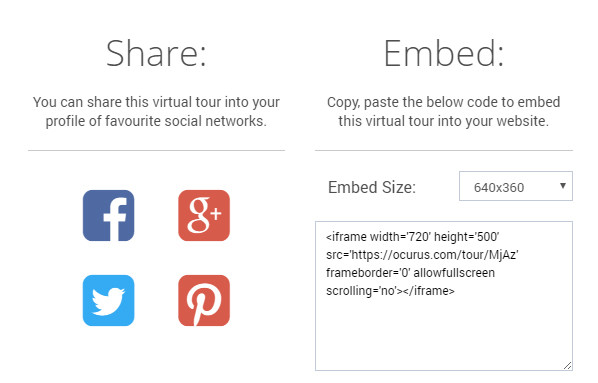
Because, if you enable your publish option ON, then your virtual tour will become a public visibility to anyone who wants to view, share and embed. But if you want to embed your virtual tour privately then leave publish option Off and use Private URL in your Embed code. |
 |